
JesType Documentation
Everything you need to know about using JesType. Turn your voice into text, privately, on Mac + Windows.
Get JesType →Quick Start
The whole thing in 30 seconds.
PRESS your shortcut
Cmd+Option+T (Mac) or Ctrl+Alt+T (Windows)
TALK
Say what you want
PRESS AGAIN
Or let go, if you chose Hold to talk
DONE
Text is pasted at your cursor
First Time Setup
Grant Microphone permission
So JesType can hear you
Grant Accessibility permission (Mac)
So it can paste into other apps. Windows needs no extra permission.
Download a speech model
A one-time download, about 456 MB for Parakeet V3, about 2.5 GB for Parakeet V3 High quality or about 202 MB for Moonshine Medium Streaming
Try a short dictation
Setup checks the words it heard, then asks you to confirm a paste
Essential Settings
| Setting | What It Does |
|---|---|
| Dictation shortcut | Change your key combination. Cmd+Option+T (Mac) or Ctrl+Alt+T (Windows) by default. |
| Shortcut behavior | Press to start, press to stop (default), or hold to talk. |
| When you stop talking | Paste, copy to the clipboard only, or paste and copy (default). |
| Press Enter after pasting | Sends the message in chat apps. Off by default. |
| Sound effects | A short sound when recording starts and stops. |
| Microphone | Pick an input profile, test a phrase, and set which microphones to prefer. |
| Speech model | Download and switch between Parakeet V3 and Moonshine Medium Streaming. |
| Write numbers as digits | "twenty five" becomes "25". Off by default. |
| Skip silence | Leaves out quiet parts before recognizing. On by default. |
| AI cleanup | Optional punctuation, case and spacing fixes by a language model. Off by default. |
| What JesType keeps | Transcript and audio (default), transcript only, or nothing. Delete by age, cap saved audio, or keep at most 0–250 dictations. |
| Autocorrect | Removes filler words and repeats, and fixes punctuation. On by default. |
Getting Started
What You'll Need
- •A Mac with Apple Silicon (M1, M2, M3, M4, or newer) running macOS 13.4+
- •OR a Windows 10+ PC (64-bit)
- •A microphone (built-in works great)
- •5 minutes for setup
First Launch
When you first open JesType, setup checks each step before you start:
Check your microphone
Grant microphone access and confirm JesType hears a signal.
Choose a speech model
Parakeet V3 in standard or high quality (25 languages), or Moonshine Medium Streaming (English only). A one-time download, about 456 MB for Parakeet V3, about 2.5 GB for Parakeet V3 High quality or about 202 MB for Moonshine Medium Streaming. It runs on your computer.
Try a short dictation
Say a phrase, check the recognized words, and confirm the paste worked.
Accessibility access (Mac)
macOS asks for this so JesType can send the paste keystroke to other apps. JesType does not read the field it pastes into.
Finding JesType
After setup, look for the JesType icon in your menu bar (Mac) or system tray (Windows). Its menu shows whether JesType is ready and lets you start or stop dictation, copy the last transcription, test your microphone, open History, or show the main window.
How to Use JesType
The Basic Flow
Press your shortcut
Cmd+Option+T (Mac) or Ctrl+Alt+T (Windows)
Say what you want
Speak naturally
Press it again
Your words are recognized on your computer
Text appears
Right where your cursor is
Each dictation is also saved to History, unless Settings → Privacy & data is set to keep nothing. Open History from the sidebar or the tray menu if a paste missed or you need something again.
Recording Modes
Press to start, press to stop (default)
Press your shortcut once to start recording and again to stop. You can talk hands-free in between.
Hold to talk
Hold your shortcut while you talk. Recording stops when you let go.
Change in: Settings → Recording
Recording Indicator
While you're recording, a compact always-on-top overlay appears with a real-time audio level indicator so you know JesType is listening. You can cancel or stop the recording from the overlay.
Features
Paste and Copy
By default JesType pastes your text and also keeps it on the clipboard. Choose Paste, Copy, or Paste and copy in Settings → Recording.
Press Enter After Pasting
Presses Enter after the paste to send the message in chat apps. Off by default, in Settings → Recording.
History
Dictations are saved on your computer with timestamps. Search them, replay the audio, or copy earlier text. In Settings → Privacy & data, keep transcript and audio (default), transcript only, or nothing, and delete automatically by age, saved audio size, or count (0–250).
Put My Clipboard Back
After pasting, JesType puts back the text you had copied, unless something else was copied meanwhile. Images, files and formatting are not restored. On by default, in Settings → Recording.
Skip Silence
Leaves out quiet parts before recognizing, with a short lead-in so the start of your speech is kept. On by default, in Settings → Transcription.
Fast Finish and Live Preview
Fast finish recognizes while you talk, so text is ready soon after you stop. It is on by default. Live preview shows words while you are still talking and is off by default. Both are in Settings → Transcription.
Text Processing
Autocorrect cleans up each transcription on your computer. It is on by default; turn it off under Dictionary → Matching.
Removing Filler Words
Quietly removes "um," "uh," "hmm," "ah," and "er" so your text reads more cleanly.
What you say:
"Um, so I was thinking, uh, we should schedule a meeting"
What you get:
"So I was thinking we should schedule a meeting"
Converting Numbers
Converts spoken numbers to digits. Supports everything from single digits to millions. Off by default; turn on Write numbers as digits in Settings → Transcription.
What you say:
"The total is two hundred fifty dollars"
What you get:
"The total is 250 dollars"
Additional Cleanup
- •Punctuation fixing — removes extra spaces before periods, adds spaces after
- •Capitalization — first letter of sentences, standalone "I"
- •Hallucination removal — strips AI artifacts like YouTube-style outros or bracketed markers
- •Repeated word/phrase removal — fixes "the the store" → "the store"
Speech Models
JesType offers three speech models. All run on your computer, and you only need one.
Parakeet (Recommended)
DEFAULTAccurate and fast on any modern computer. Supports 25 languages including English, French, German, Spanish, and more, detected automatically. About 456 MB download and about 1.1 GB of memory.
Parakeet High quality
The same model with full-precision weights. Clearer with accented speech, in the same 25 languages. About 2.5 GB download and about 2.6 GB of memory, so it suits computers with 16 GB or more.
Moonshine Medium Streaming
English only, with a smaller download and lower memory use than Parakeet. Parakeet remains the recommended default. About 202 MB download.
Switch models in Settings → Transcription → Speech model. The change applies from your next dictation. JesType unloads an idle model after 10 minutes to free memory and loads it again when you next dictate.
Word Replacements
Teach JesType your vocabulary — names, terms, and shortcuts that make it feel like it actually knows you.
Why Use Word Replacements?
Fix Consistent Errors
If JesType consistently mishears something, add a rule to fix it automatically.
Proper Capitalization
Names, brands, and acronyms: iphone → iPhone, api → API
Technical Terminology
Industry-specific terms: kubernetes → Kubernetes
Text Expansion
Short → long: addr → 123 Main Street, Suite 400
Example Replacements
| Category | Original | Replacement |
|---|---|---|
| Names | john | John |
| Tech Terms | api | API |
| Brands | ||
| Shortcuts | myemail | you@email.com |
| Signature | sig | Best regards, Your Name |
Matching Modes
Exact Mode
Whole-word matching. Only replaces when the exact word or phrase is found.
Sound-alike Matching (Default)
Also replaces words that are spelled or sound close to an entry, using Levenshtein distance, Soundex phonetic matching, and N-gram analysis. Turn it off under Dictionary → Matching.
Pro Tip
Start small — add rules as you notice problems, don't try to predict everything. After a few weeks of building your word replacements, it'll feel like JesType knows your vocabulary.
AI Cleanup
AI cleanup is optional and off by default. After recognition, JesType sends the transcript text to a language model that fixes punctuation, capitalization and spacing. JesType then checks the result. If the model changed any words, numbers, list structure, or dictionary terms, JesType keeps your original text.
What you say:
"hey can you send me the report when you get a chance thanks"
After AI cleanup:
"Hey, can you send me the report when you get a chance? Thanks."
Turn it on in Settings → Transcription → Text formatting and pick a cleanup provider. OpenRouter (cloud) uses your own API key, and your transcript text, never the audio, goes to that provider. While it is on, Settings → Privacy & data says so. Local server sends the text only to a model server on this computer, at a loopback address such as http://127.0.0.1:11434/v1, and needs no key. The prompt template uses ${output} as the placeholder for your transcription text.
Use Cases
Real situations where talking beats typing.
Email & Communication
Quick Email Replies
Open an email, click Reply, press your shortcut, speak your response, press it again. Quick proofread, hit Send.
Meeting Notes
When someone says something important, press your shortcut and quickly paraphrase. Press it again and the text lands in your notes.
Creative Work
First Drafts
Get words on the page without the friction of typing. Just talk through your ideas and clean up after.
Brainstorming
Capture ideas in the moment. Press, speak, press, move on. Raw ideas and fragments are fine.
Professional Workflows
Sales & CRM
Dictate meeting notes directly into Salesforce or HubSpot fields.
Legal
Document research, case notes, client communications. Use word replacements for legal terms.
Healthcare
Chart notes between appointments. Your audio stays on your device.
Accessibility
Replace routine typing with dictation. Save your hands for tasks that truly need them.
Privacy & Security
Your voice never leaves your computer.
How It Works
Your microphone captures audio
The audio is processed by an AI model on your computer
The AI converts speech to text locally
Text is pasted where your cursor is
Saved to local history, unless you set it to keep nothing
Audio never leaves your device. Text leaves only if you turn on AI cleanup with a cloud provider, which sends the transcript text to that provider. Local cleanup keeps it on your computer. License checks and updates send license and device details, never your dictation.
Permissions Explained
Microphone (Required)
To hear your voice during recording. Audio is captured only while you are recording or testing your microphone.
Accessibility (Mac, for pasting)
To send the paste keystroke, and Enter if you turn that on, to the app you are using.
Comparison with Cloud Dictation
| Feature | JesType | Cloud Services |
|---|---|---|
| Audio processing | On your device | Uploaded to servers |
| Internet required | For setup, license checks and updates | Yes, always |
| Works offline | Yes | No |
| Data stored where | Your computer only | Company servers |
| Who can access | Only you, unless you turn on cloud AI cleanup | You + company + others |
Data Storage
All data is stored locally in your app data folder: ~/Library/Application Support/jestype/ on Mac. This includes settings, your dictionary, transcription history, audio recordings if you keep them, and downloaded models. Your AI cleanup API key is kept in the system credential store.
Troubleshooting
| Problem | Quick Fix |
|---|---|
| Shortcut not working | Another app may use the same keys. Pick a different combination in Settings → Recording. The tray menu shows whether JesType is ready. |
| Text not pasted | On Mac, check Accessibility permission in System Settings. After a normal signed update, the existing permission should keep working. If access remains denied, remove the old JesType entry, add /Applications/jestype.app again, and restart JesType. Your dictation is still in History. |
| No audio detected | Check Microphone permission. In Settings → Microphone, check the selected input and use Test a phrase to see the input level. |
| Wrong words | Add vocabulary or replacements on the Dictionary page. Try the other speech model. Reduce background noise. |
| Blank transcription | Speak louder or move closer to the mic. Check the microphone in Settings → Microphone. |
| App won't open | Confirm macOS 13.4+ or Windows 10+. Restart your computer. Download the latest version. |
Fixing Permission Issues
Paste or shortcut still not working after an update? (Mac)
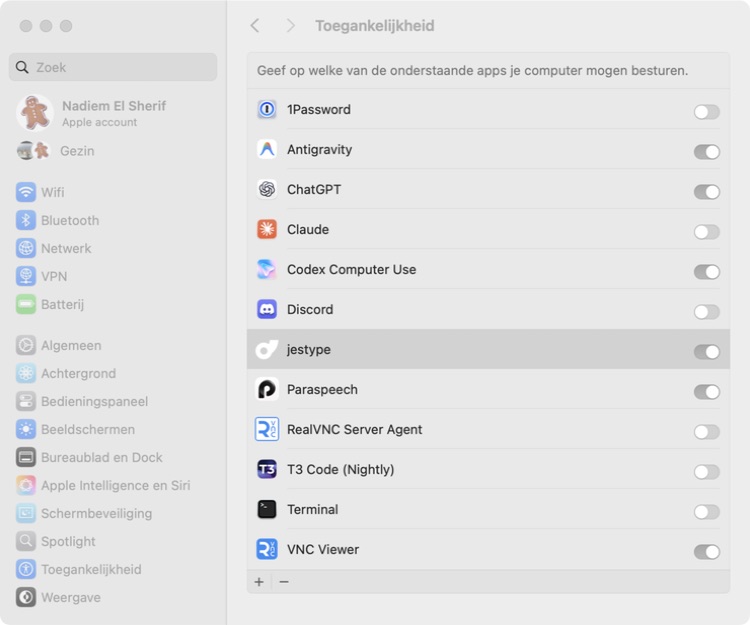
If switching Accessibility off and on does not help, remove the stale JesType entry and add the installed app again.
- 1.Open System Settings → Privacy & Security → Accessibility. Select JesType, then click the minus button to remove it.
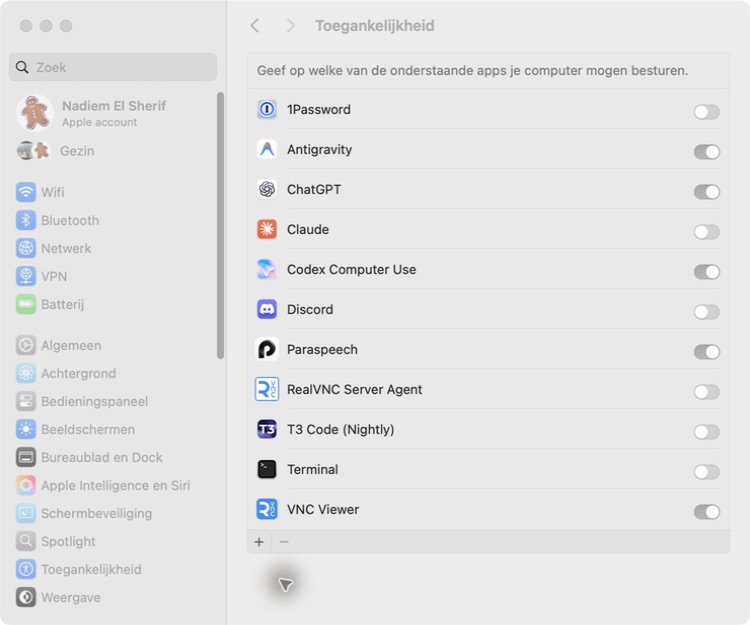
- 2.Confirm that JesType is no longer in the Accessibility list, then click the plus button.
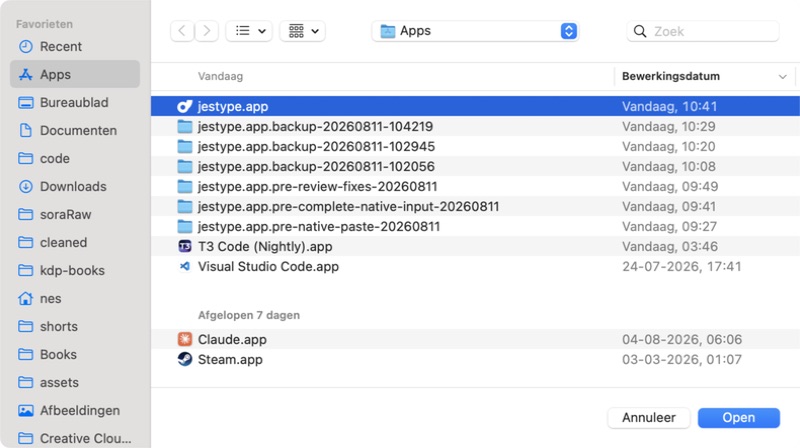
- 3.In Applications, select jestype.app and click Open. If needed, press Command-Shift-G and enter /Applications.
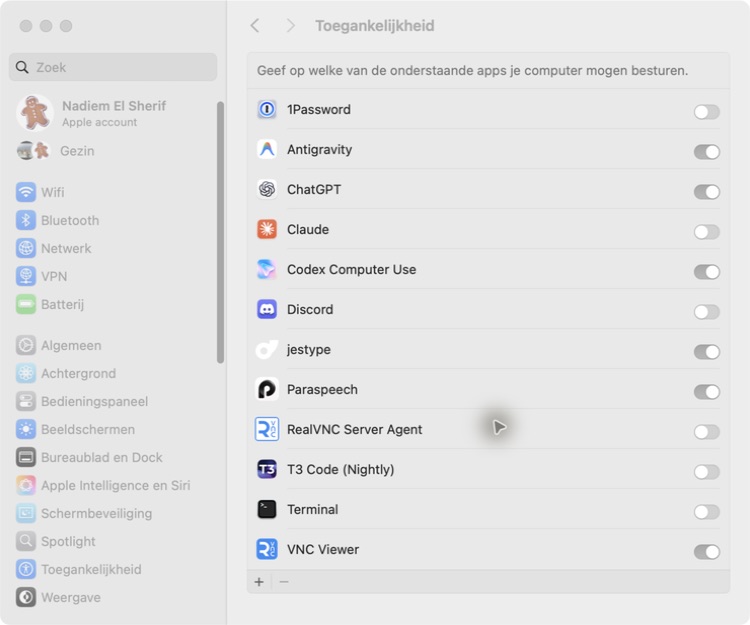
- 4.Make sure the newly added JesType switch is enabled, then reopen JesType.
Microphone not detected?
- 1. Open System Settings → Privacy & Security → Microphone
- 2. Make sure JesType is listed and enabled
- 3. Restart JesType
- 4. Try a test recording in Voice Memos to verify your mic works
Still need help? Email us at hello@jestype.com — we actually read and reply to these.
Frequently Asked Questions
The Basics
What is JesType?
JesType is an offline speech-to-text app for Mac and Windows. Press a shortcut, speak, press it again, and your words are pasted into the app you are using. Speech recognition runs on your computer.
Does my voice get sent somewhere?
No. Speech recognition runs on your computer and your audio never leaves it. The only thing that can leave is transcript text, and only if you turn on AI cleanup with a cloud provider.
Will it work on my computer?
Mac: Apple Silicon (M1–M4+) with macOS 13.4+. Windows: Any 64-bit PC with Windows 10+.
How much does it cost?
Personal €14.95 (1 device), Pro €34.95 (3 devices), Team €49.95 (6 devices). All one-time, with no subscription or recurring fees.
Does it work without internet?
Speech recognition does, once a model is downloaded. Activation, license checks and updates need a connection. A paid license keeps working offline for up to 30 days between checks. The 48-hour trial needs a connection.
Using JesType
How do I actually use it?
Press your shortcut (Cmd+Option+T on Mac, Ctrl+Alt+T on Windows by default), speak, then press it again. The text is pasted where your cursor is. If you would rather hold the keys while you talk, choose Hold to talk in Settings → Recording.
Can I use a different shortcut?
Yes. Go to Settings → Recording → Dictation shortcut, click Change, and press any 2 or 3 key combination.
It's making mistakes. How do I fix that?
Add the word to your vocabulary, or add a replacement, on the Dictionary page. Try the other speech model. Reduce background noise.
What languages does it understand?
Parakeet (the default model) supports 25 languages including English, French, German, Spanish, and more, detected automatically. Moonshine is English-only.
What is AI cleanup?
An optional feature, off by default, that sends your transcript text to a language model to fix punctuation, capitalization and spacing. If the model changes any words or numbers, JesType keeps your original text. Use OpenRouter with your own API key, or a model server on your own computer.
Privacy & Purchasing
Is my data actually private?
Audio is recognized and stored on your device and never uploaded. History stays in your app data folder, and you choose in Settings → Privacy & data whether it keeps audio, transcripts only, or nothing. If you turn on AI cleanup with a cloud provider, transcript text goes to that provider.
Why does it need Accessibility access?
On Mac, JesType needs it to send the paste keystroke, and Enter if you turn that on, to the app you are using. It does not read the field it pastes into.
Is this a subscription?
No. One payment, yours forever. All updates included.
I have multiple computers. Can I use it on all of them?
Licenses cover Personal €14.95 (1 device), Pro €34.95 (3 devices), Team €49.95 (6 devices). You can mix Mac and Windows.
Keyboard Reference
| Action | Shortcut |
|---|---|
| Start and stop dictation | Cmd+Option+T (Mac) or Ctrl+Alt+T (Windows) by default. Hold it instead if you chose Hold to talk |
| Open Home, History, Dictionary, Insights | Cmd+1 to Cmd+4 (Ctrl on Windows) in the JesType window |
| Open Settings | Cmd+, (Ctrl+, on Windows) |
| Previous or next settings section | Cmd+[ and Cmd+] (Ctrl on Windows) |
| Tray menu | Click the menu bar / system tray icon |
For people who'd rather talk than type.
Get JesType →